
Screens
Screens are the building blocks of your learning experience. They display content, play videos, gather input, and guide learners through your course.
ChangeLab Creator includes a variety of screen types, each designed for a specific purpose. You can customise the appearance, content, and behaviour of every screen to match your needs.
Video screens
Video screens let learners watch instructional content with optional interactive elements.
Video Fullscreen
A distraction-free video player that fills the entire screen. Perfect for immersive video content.
Customisation options:
- Video file (MP4)
- Autoplay settings
- Show/hide playback controls
- Skip button (optional)

PostMessage events: finish, reset
// Supported events
window.parent.postMessage({ message: "finish" }, "*")
window.parent.postMessage({ message: "reset" }, "*")
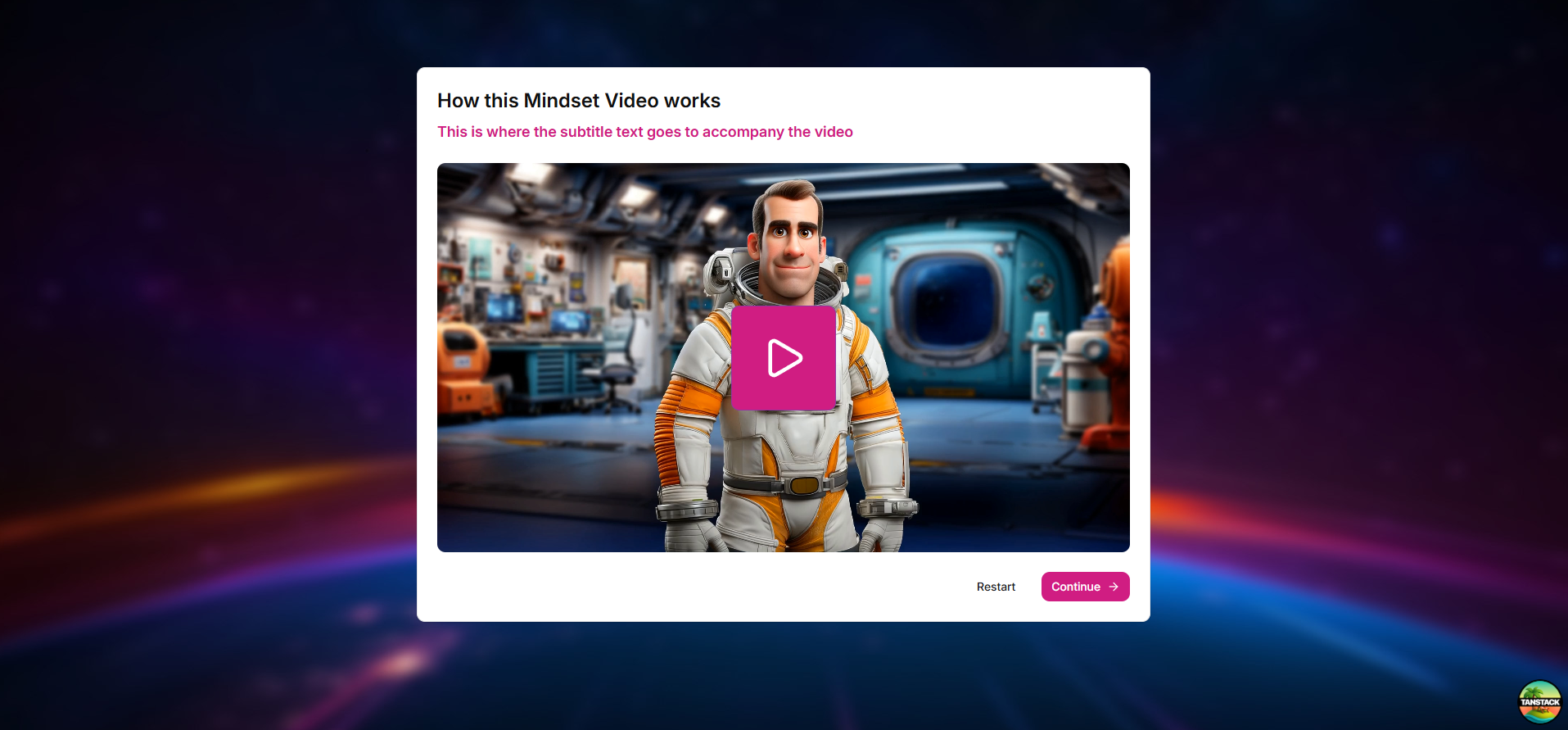
Video Card
Displays a video alongside text content in a card layout. Great for combining video with instructions or context.
Customisation options:
- Video file
- Card title and description
- Background image
- Theme colours
- Optional quiz overlay
PostMessage events: finish, requestForNextPage, reset
// Supported events
window.parent.postMessage({ message: "finish" }, "*")
window.parent.postMessage({ message: "requestForNextPage", score: 0, totalGameScore: 0, gameId: "video-card", page: 1 }, "*")
window.parent.postMessage({ message: "reset" }, "*")
Interactive screens
Interactive screens engage learners with activities and input collection.
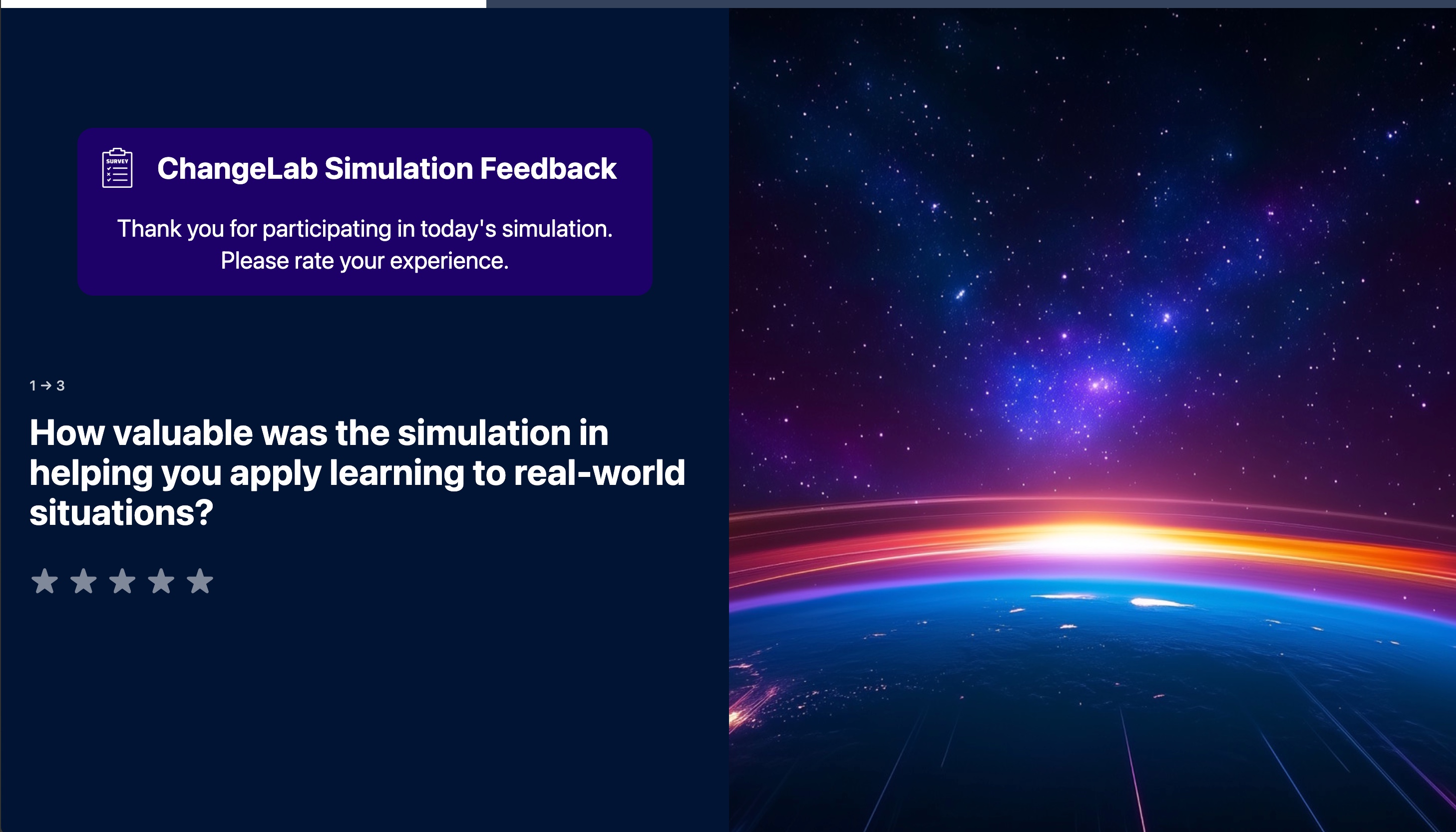
Survey
Collect feedback or check understanding with rating scales, multiple choice, or open-ended questions.
Customisation options:
- Question text
- Answer options
- Rating scale type
- Success/failure feedback
- Sound effects
- Points and scoring
PostMessage events: finish, requestForNextPage, reset, updateScore
// Supported events
window.parent.postMessage({ message: "finish" }, "*")
window.parent.postMessage({ message: "requestForNextPage", score: 10, totalGameScore: 10, gameId: "survey", page: 1 }, "*")
window.parent.postMessage({ message: "reset" }, "*")
window.parent.postMessage({ message: "updateScore", value: 10, choice: "answer-1", isFinished: false }, "*")
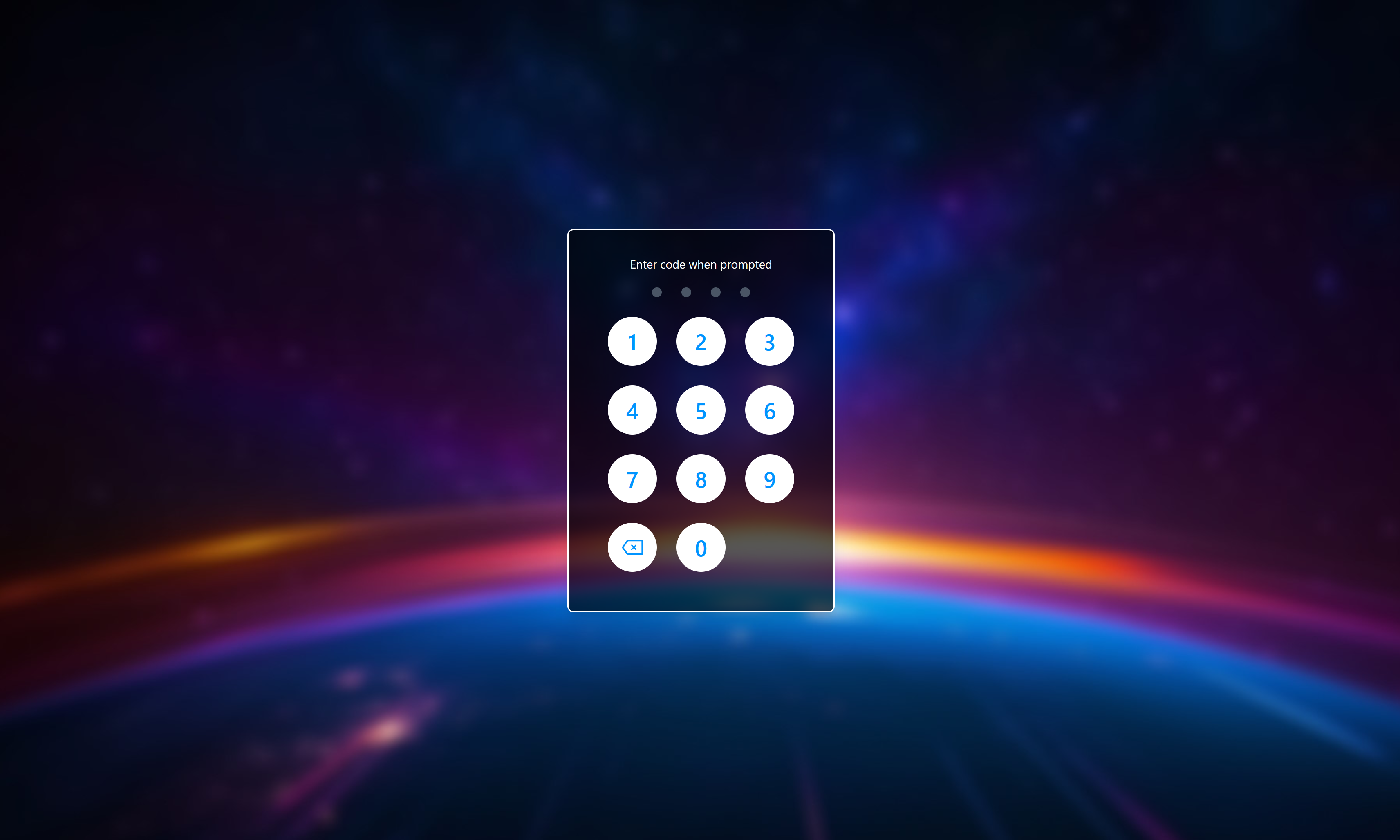
Password
A gated screen requiring learners to enter a code or password to proceed. Useful for access control or knowledge checks.
Customisation options:
- Password/code value
- Hint text
- Error messages
- Background and branding
- Sound effects
PostMessage events: finish, reset
// Supported events
window.parent.postMessage({ message: "finish" }, "*")
window.parent.postMessage({ message: "reset" }, "*")
End screens
End screens wrap up the learning experience and provide closure or next steps.
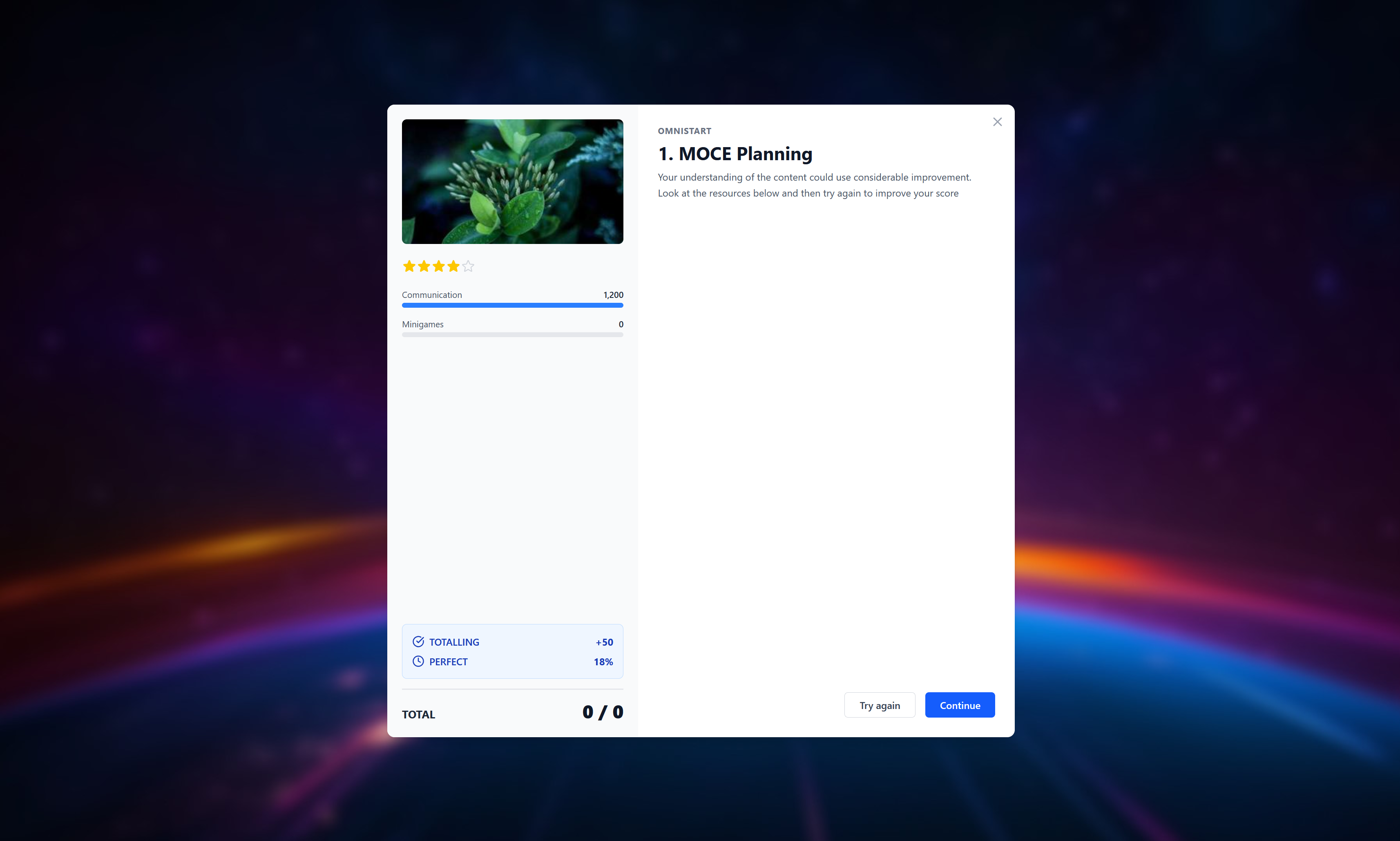
End
A completion screen that congratulates learners and optionally shows their score or achievements.
Customisation options:
- Completion message
- Score display
- Background image
- Call-to-action button
- Certificate or badge display
PostMessage events: finish, requestForNextPage, reset
// Supported events
window.parent.postMessage({ message: "finish" }, "*")
window.parent.postMessage({ message: "requestForNextPage", score: 0, totalGameScore: 50, gameId: "end", page: 1 }, "*")
window.parent.postMessage({ message: "reset" }, "*")
Adding a screen to your project
- Open your project in ChangeLab Creator
- Navigate to the timeline or level editor
- Click Add Screen or drag a screen from the asset panel
- Select the screen type you want to add
- Use the sidebar to customise the screen content and appearance
- Preview your changes in real-time
Each screen type has its own set of customisation options. Click on a screen in the editor to see all available settings in the sidebar.